
Introducing Image Compressor & WebP Converter for Windows
Oversized images slow down sites, clog email, and arrive from phones in formats half the web still argues with. Here is a batch tool that fixes all three on your own PC.
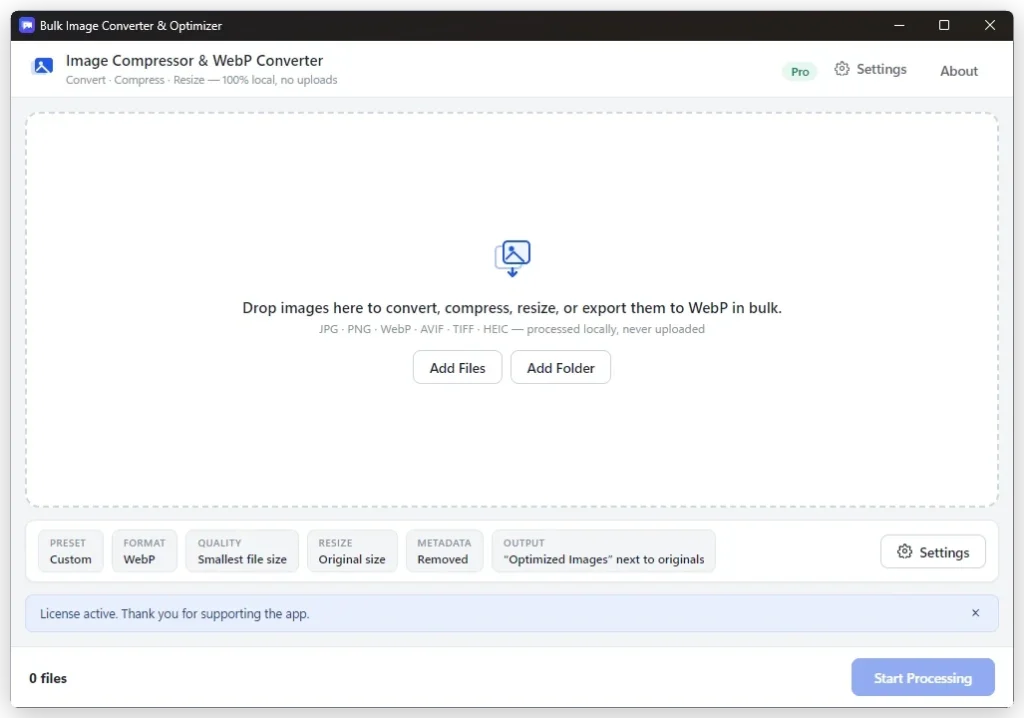
Image problems tend to arrive in bulk. A folder of product photos that are four times bigger than the page needs. A camera roll full of HEIC files that half your tools will not open. A gallery that has to become WebP before it is worth uploading.
None of that is difficult work. It is just repetitive, and the obvious solutions are a browser uploader that wants your whole folder, or an editor that was designed for one image at a time.
What the app does
Image Compressor & WebP Converter is a Windows desktop app built around a local queue: you add files, you choose what should happen to them, and it works through the list.
- Batch compression — add many files and process them in one queue.
- WebP conversion — convert supported formats to WebP for smaller modern images.
- Format support — PNG, JPG, JPEG, WebP, HEIC, TIFF and AVIF, where supported by the app.
- Batch resizing — apply consistent dimensions across a whole set.
- Quality presets — Keep Original Quality, Lossless Optimize, Balanced and Smallest.
- Transparency — PNG transparency is maintained during supported workflows.
The presets are the part worth understanding, because they are how you decide what you are trading. Keep Original Quality and Lossless Optimize protect the pixels; Balanced and Smallest let the file get smaller. We deliberately do not publish a headline percentage for any of them — how much a given image shrinks depends entirely on the image.
The workflow
1. Add images or folders
Drop in individual files or whole directories.
2. Choose format, quality and resize options
Pick the output format, the preset, and any dimension change you want applied across the set.
3. Process the queue
Run it and save the optimised results. The app is designed to write new files rather than overwrite your originals, which matters when you are converting a folder you cannot re-shoot.
The queue runs on your machine
Compression, conversion and resizing all happen locally on your Windows PC. Your images are not uploaded to DreamFast servers during normal processing — there is no browser upload step, and no waiting for someone else’s server to hand your photos back.
As with our other file tools, the honest boundary: image processing is local, while installing, buying and updating go through the Microsoft Store, which needs a connection.
Where it earns its place
The jobs this app is genuinely good at are the boring, repeating ones — preparing a batch of images for WordPress, converting a product catalogue to WebP, getting a set of attachments under an email limit, resizing a folder of photos to one consistent width, or converting HEIC files from a phone into something every tool will open.
Trying it, and what it costs
Image Compressor & WebP Converter is on the Microsoft Store, with a 7-day free trial through Microsoft Store — long enough to run your real folders through it, which is the only test that tells you anything.
The trial is the complete app, not a limited edition of it.
Pricing is shown on its Microsoft Store listing, where Microsoft handles the purchase, billing and updates.
Installing it
It installs from the Microsoft Store like any other Store app — signed by Microsoft, checked for your PC before it installs, and updated automatically.
More from DreamFast Apps
Browse the rest of the articles, or see what each app actually does.