
Introducing Quick Color Picker: Pick Any Screen Color in Seconds
Grabbing an exact colour from your screen should not require opening a design app. A global shortcut, a magnifier, and a value already on your clipboard.
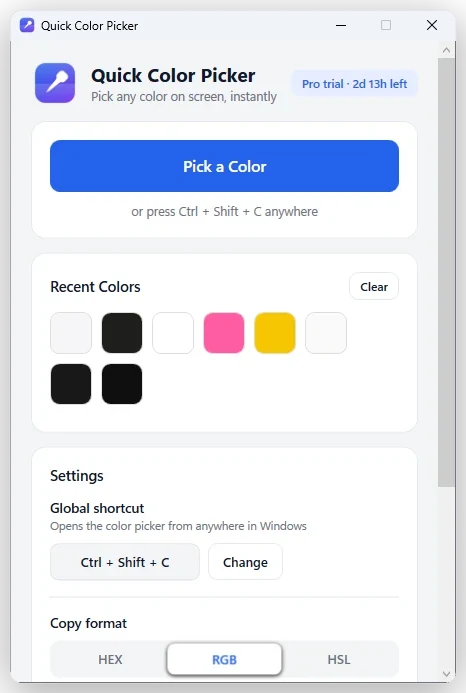
You need one colour. It is on screen, right in front of you, in a website, a screenshot, or somebody else’s app.
The usual route is four steps long: screenshot the thing, open an image editor, find the eyedropper, read the value off a panel. By the time you are back where you started you have forgotten why you needed it.
What Quick Color Picker does
It removes the detour. Press a shortcut, magnify, click, and the value is on your clipboard.
- Global shortcut — open the picker from almost anywhere in Windows.
- Pixel-level magnifier — zoom in and select the exact pixel you meant, not the one next to it.
- HEX, RGB and HSL — see and copy whichever format your work needs.
- Clipboard copy — automatic or manual, whichever suits how you work.
- Recent history — go back to colours you picked earlier.
- System tray — stays available without occupying your taskbar.
- Light and dark — matches the supported Windows appearance.
The workflow
1. Press the shortcut
From whatever you were already doing. The picker comes to you.
2. Magnify and aim
The magnified view is the difference between sampling the colour and sampling the anti-aliased pixel beside it. On gradients, borders and small type, that is most of the value.
3. Copy the value
Take HEX, RGB or HSL and paste it where it was going.
A note on what this app does and does not touch
Quick Color Picker reads pixels from your screen. It does not process, convert or upload your files, because it does not work with files at all — worth saying plainly, since we describe other DreamFast apps as doing local file processing and this one simply has no files to process.
It needs standard Windows user permissions, the ability to sample from the screen, and a global keyboard shortcut. That is the whole footprint.
Where it fits
Matching a colour from a live website. Copying a value out of an application interface that has no inspector. Reading colours off a screenshot a client sent. Collecting a set of colours for a design system. Any moment where opening a design editor to read one number is more work than the number is worth.
Trying it, and what it costs
Quick Color Picker is on the Microsoft Store, with a 7-day free trial through Microsoft Store — use it in your actual workflow for a week and you will know, because this is a tool you either reach for constantly or not at all.
The trial unlocks every feature, at no charge to start.
It is our smallest app. Pricing is shown on its Microsoft Store listing, where Microsoft handles the purchase, billing and updates.
Installing it
It installs from the Microsoft Store like any other Store app — signed by Microsoft, checked for your PC before it installs, and updated automatically.
More from DreamFast Apps
Browse the rest of the articles, or see what each app actually does.