
Introducing ViewportSnap: Cleaner Screenshots on Windows
Print Screen gives you a raw grab of everything. ViewportSnap gives you the region, the window, the browser viewport or the whole scrolling page — then makes it presentable.
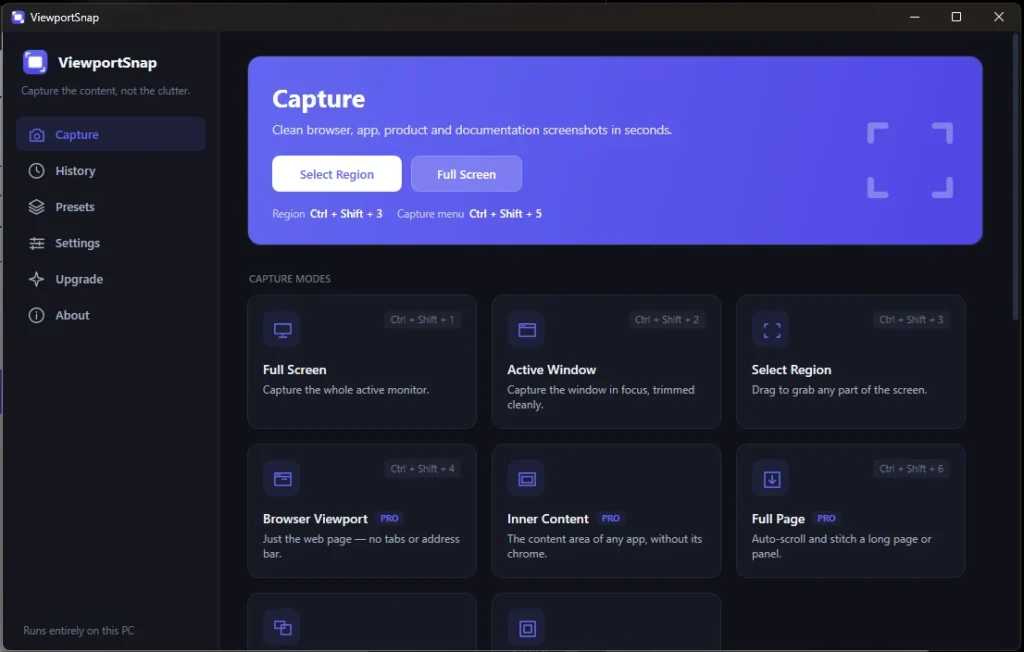
Screenshots are the fastest way to explain something, and the default tools make them the slowest part of the job.
Print Screen grabs everything, including the parts you did not want. Long pages need three captures and a stitching session. Anything going into documentation, a store listing or a client email needs cropping, and then a background so it does not look like it was pasted in from nowhere.
What ViewportSnap does
It covers the capture modes real work actually needs, then gives you somewhere to tidy the result before it leaves the app.
Capture
- Full screen — one display, all monitors, or the full desktop.
- Active window — the current application window, cleanly.
- Region — only the area that matters.
- Browser viewport — the visible browser content without unnecessary browser chrome, where supported.
- Inner content and UI panels — target a useful content area instead of cropping it out by hand afterwards.
- Scrolling capture — a long page or a scrolling region as one final image.
Then finish it
- Built-in polish — backgrounds, shadows, rounded corners, canvas spacing and supported presets.
- Flexible export — PNG, JPG or WebP, or straight to the clipboard.
- Recent history — return to a recent capture without repeating the workflow.
The workflow
1. Choose a capture mode
Pick the mode that matches what you are documenting, rather than grabbing everything and fixing it later.
2. Capture and crop
Take the shot and trim it to the content you meant.
3. Style and export
Add a background, shadow or rounded corners if the image is going somewhere public, then export as PNG, JPG or WebP — or copy it straight to the clipboard and paste it into whatever you were writing.
Scrolling capture is the one people notice
Most screenshot tools stop at the bottom of your monitor. Capturing a full page — a long article, a settings screen with more rows than fit, a pricing table that runs past the fold — normally means several captures and manual alignment, and manual alignment always shows.
ViewportSnap captures long pages and scrolling regions into a single final image, which turns a fiddly ten-minute job into part of the same three steps as everything else.
Where it fits
Documentation screenshots that need to look consistent. A complete product page captured in one image. An application panel pulled out of a busy interface. Blog post images. Store screenshots that need a background and rounded corners before they are presentable. Sharing a long page as one image instead of a folder of fragments.
Captures are created and exported on your PC, and go to the location you choose.
Trying it, and what it costs
ViewportSnap is on the Microsoft Store, with a 7-day free trial through Microsoft Store — try it on a real documentation job, because capture modes are the sort of thing you only evaluate properly against actual work.
The trial unlocks every feature, at no charge to start.
Pricing is shown on its Microsoft Store listing, where Microsoft handles the purchase, billing and updates.
Installing it
It installs from the Microsoft Store like any other Store app — signed by Microsoft, checked for your PC before it installs, and updated automatically.
More from DreamFast Apps
Browse the rest of the articles, or see what each app actually does.