Introducing PDF Quick Kit: Essential PDF Tools Without a Subscription
PDF work is small, constant, and weirdly hard to do without either a monthly bill or an upload to someone else’s server. PDF Quick Kit puts the everyday tools on your Windows PC instead.
Most PDF jobs are small. Shrink a file so it clears an email limit. Pull three pages out of a twenty-page contract. Merge four scans into one document. Sign something and send it back.
The awkward part is what those small jobs usually cost you. The convenient route is a website, which means uploading a document you may not want to upload. The thorough route is a full creative suite, which means a monthly bill for a job that takes forty seconds.
What PDF Quick Kit does
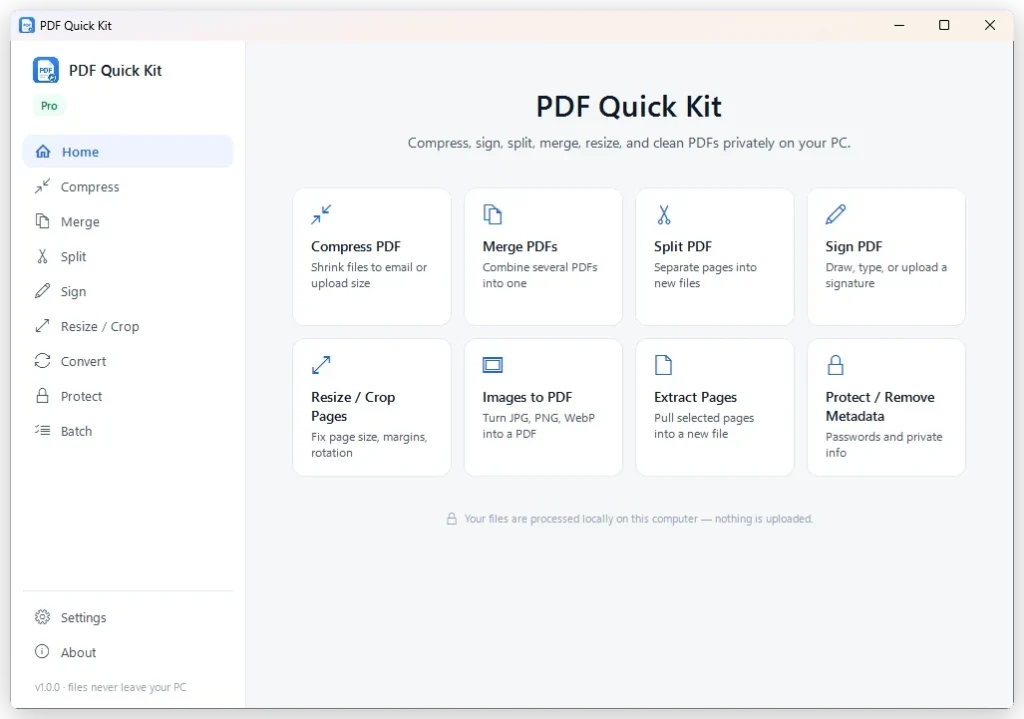
It is a Windows desktop app that collects the PDF operations you actually reach for, without asking you to choose between convenience and control:
- Compress — reduce PDF file size for email, upload, and storage.
- Merge — combine multiple documents into one organised PDF.
- Split — extract selected pages, or divide a large document into smaller files.
- Sign — add a signature without handing the document to an online service.
- Convert — turn supported images into PDF, and export supported PDF content where available.
- Protect — apply supported PDF protection options before sharing something sensitive.
- Resize and crop — adjust page dimensions and remove unnecessary page areas.
- Clean metadata — strip supported document metadata before a file leaves your PC.
- Batch — process multiple supported files at once, where the selected tool supports batching.
The workflow
There are three steps, and they are the same regardless of which tool you pick.
1. Add your files
Choose or drag in the documents you want to work on.
2. Pick a tool
Compress, Merge, Split, Sign, Protect, Convert, Resize, Crop, or another supported operation.
3. Save the result
Review the operation and save the processed file. PDF Quick Kit is designed to write results as new files rather than overwrite your originals, so a bad setting costs you a second attempt, not the source document.
Your documents stay on your PC
Normal PDF processing runs locally on your Windows machine. Your working documents are not uploaded to DreamFast servers as part of that.
That matters most for the documents you would hesitate to drag into a browser tab: contracts, invoices, medical paperwork, anything with a client’s name on it. It is worth being precise about the boundary, though — file processing is local, but installing, buying and updating go through the Microsoft Store, which needs a connection. The app is not pretending to be offline software; it is keeping your files out of the round trip.
Trying it, and what it costs
PDF Quick Kit is on the Microsoft Store, with a free 7-day trial. Every feature is available during the trial, at no charge to start — install it from the Store and the trial begins.
When the 7 days are up, buy the app from the Store to keep using it. The trial is the whole app, not a limited edition of it.
Pricing is shown on the Microsoft Store listing, where the purchase is handled. Microsoft takes care of checkout, billing and receipts, and delivers updates automatically — you buy and manage it the same way as any other Store app.
Installing it
Because PDF Quick Kit comes from the Microsoft Store, it is signed by Microsoft and checked for compatibility with your PC before it installs — no security warnings or manual file checks to worry about.
Open the Microsoft Store listing from the PDF Quick Kit page on this site, then install it like any other Store app. Updates arrive automatically.
More from DreamFast Apps
Browse the rest of the articles, or see what each app actually does.